Wednesday, 4 March 2015

Network Error 0x80070035 'Windows cannot access. ..'

Trying to 'network' two computers (Laptop & PC) on 'Windows 8.1 with Bing' on a wireless Network, and you get a cannot access error message dialog that looks something like this:


The cause for me in this instance was because the PCs weren't in the same workgroup.

FIX: Join or create a workgroup as follows:

1. Tap or click to open System.

2. Under Computer name, domain, and workgroup settings, tap or click 'Change settings'. If Administrator permission is required, you might be asked for an admin password or to confirm your choice. 

3. In the System Properties dialog box, tap or click the Computer Name tab, and then tap or click 'Change'.

4. In the Computer Name/Domain Changes dialog box, under Member of, tap or click Workgroup, and then do one of the following:

• To join an existing workgroup, enter the name of the workgroup that you want to join, and then tap or click OK.

• To create a new workgroup, enter the name of the workgroup that you want to create, and then tap or click OK.

***

Other possible causes:

# You don't have access permissions for the file or folder you're trying to get to.
FIX:  Contact the owner of the file or folder to ask for permission.
If you're on a corporate network, you'll need to contact your network administrator

***

# Password-protected sharing is turned on.
FIX: Password-protected sharing is on by default for PCs in workgroups. When password-protected sharing is turned on, people using other PCs on your network can't get to your shared folders or printers unless they have a user account on your PC. There are two ways to turn on file or printer sharing:
  • Create identical user accounts on all PCs in the workgroup (recommended). For more info, see Create a user account.
  • Turn off password-protected sharing. To turn off password-protected sharing, follow these steps:
  1. Tap or click to open Advanced sharing settings.
  2. Click the chevron The chevron icon to expand the current network profile.
  3. Under Password protected sharing, click Turn off password protected sharing, and then click Save changes. You might be asked for an admin password or to confirm your choice.
Note:
  • Password-protected sharing is unavailable on PCs that are on a domain.
  • You can only join a domain if your PC is running Windows 8.1 Pro or Windows 8.1 Enterprise.
***

# The Find devices and content slider is turned off.
FIX: To find PCs, devices, and content on your network...
  1. Swipe in from the right edge of the screen, tap Settings, and then tap Change PC settings.
    (If you're using a mouse, point to the lower-right corner of the screen, move the mouse pointer up, click Settings, and then click Change PC settings.)
  2. Tap or click Network, and then turn on the Find devices and content slider.

Wednesday, 31 December 2014

"ClassFactory cannot supply requested class" error with windows 7 and IE10.


When you click on a .html file in Windows Explorer on Windows 7, and get this error:

"ClassFactory cannot supply requested class"


Another software installation may be currupting or registering old version of ieproxy.dll. You could try Re-registering this ieproxy.dll again to see whether problem goes away.

To re-register follow the below steps.

1. Login to System as Administrator.
2. Go to command prompt.
3. Navigate to C:\Program Files\Internet Explorer for 32 bit.
4. Type regsvr32 ieproxy.dll and press Enter. It will register the ieproxy.dll with this confirmation:


5. Type regsvr32 actxprxy.dll. (Some times this dll also may get affected by some other application...Note: if this dll file is not in your IE folder it could be in C:\Windows\System32).
Again you get this confirmation:

6.  Restart the system.


If the problem persists, consider resetting Internet Explorer to its default configuration:
How to reset Internet Explorer settings
http://support.microsoft.com/kb/923737/en-us

Sunday, 28 December 2014

Could not load file or assembly 'Microsoft.SqlServer.Sqm, Version=10.0.0.0, Culture=neutral, PublicKeyToken=89845dcd8080cc91' or one of its dependencies. (SqlMgmt)

Trying to attach a database .MDF file via a newly installed SSMS (SQL Server Management Studio) and you get this dialog?

"Could not load file or assembly
'Microsoft.SqlServer.Sqm ..."


This FIX worked for  me:

Copy the file Microsoft.SqlServer.Sqm.dll located on
C:\Program Files\Microsoft SQL Server\100\Shared to folder
C:\Program Files\Microsoft SQL Server\100\Tools\Binn\VSShell\Common7\IDE

Found here: Just a Reminder

Saturday, 27 December 2014

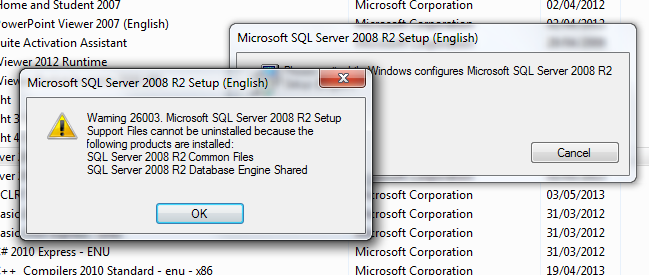
"Warning 26003. MS Server 2008 R2 Setup Support Files cannot be uninstalled because the following products are installed: SQL Server 2008 R2 Common Files SQL Server 2008 R2 Database Engine Shared”


For many weeks I was stuck in SQL Server hell, and almost, nearly, resigned to having to wipe my hard drive clean, in order to get SQL Server to un-install and re-install successfully !!!


SQL Server un-install wizard kept on getting stuck halfway through the un-install process...asking for, but refusing to accept, the sqlsupport.msi file, even when pointing to a valid install location!


Until I found the answer to my woe (amazingly it works... Like a magic charm!)


Solution:
Save a file as "sql.reg" on your desktop with the following text (use copy-paste) shown in italics:


Windows Registry Editor Version 5.00

[HKEY_LOCAL_MACHINE\SOFTWARE\Microsoft\Microsoft SQL Server\100\Bootstrap]
"BootstrapDir"="C:\\Program Files\\Microsoft SQL Server\\100\\Setup Bootstrap\\"

[HKEY_LOCAL_MACHINE\SOFTWARE\Microsoft\Microsoft SQL Server\100\Bootstrap\Setup]
"PatchLevel"="10.50.1600.00"


After saving the file to desktop, double click the file and accept the dialog to merge this to your registry.

Then copy the following files from your installation folder to the location :

C:\Program Files\Microsoft SQL Server\100\Setup Bootstrap\SQLServer2008R2

Note: If you don't see these folders just create them with the exact name

What is to be copied:

folder: x64/x86/ia64 (depending on 64bit, 32bit or itanium architecture),

folder: resources

file: setup.exe

Now run setup.exe from your installation folder again. Your fresh installation should begin.

Hopefully this helps you too.

See : Only the good stuff

Sunday, 26 October 2014

This page can't be displayed

How I fixed "This page can't be displayed" error message/error page on Internet Explorer(v10), after being unable to browse secure internet web sites:

(I suspect a recent Windows 7 auto-update may have wiped out previous 'stable' settings, considering this problem surfaced suddenly out of the blue, sort of, after many months of relatively trouble-free SSL surfing.)

Make sure TLS and SSL protocols are enabled: Go to Tools > Internet Options > Advanced > Settings > Security

May work for some...

٭ Click Tools menu and select Internet Options
٭ Select the Advanced tab
٭ Scroll down to Security section
٭ Make sure "Use SSL 2.0 / Use SSL 3.0" are selected. Particularly, as in my case, also be sure to select "Use TLS 1.2"
٭ If necessary, restart your browsing session

Tuesday, 22 April 2014

"MIDI device or the audio device to be used for VSC's audio output cannot be opened. Playback unavailable at this time"

Relates to VSC (Virtual Sound Canvas) and band-in-a-box by PG Music

When you try to
open the VSC as a stand-alone application, (and you are trying to use the Roland VSC as your MIDI output driver), you may get the message "MIDI device or the audio device to be used for VSC's audio output cannot be opened. Playback unavailable at this time":


There are a few possible solutions. You should be able to resolve the problem by following one or more of the suggestions below. Alternatively, use the VSC-DXi instead of the VSC-3 stand-alone version.

Select something other than the VSC as your default MIDI driver in Windows
  1. On Windows XP go to Start | Control Panel | Sounds and Audio Devices | Audio tab.
    or  Win2000 Start | Settings | Control Panel | Sounds and Multimedia | Audio.

  2. Select something other than the Roland VSC for default audio and MIDI playback.
  3. Restart your computer.
Make sure vscvol and vsc32cnf are enabled at startup.
  1. Go to the Start menu | Run, type "msconfig" and press OK. This should open the System Configuration Utility. Note: Windows 2000 doesn't have the system configuration utility.
  2. Click on the Startup tab and make sure there are checkmarks beside 'vscvol' and 'vsc32cnf'.
  3. Press [Apply], then [OK], and restart your computer.


Reinstall the VSC


  1. Uninstall the Roland VSC using the Add/Remove Programs utility.
  2. Right-click on My Computer and select 'Properties'.
  3. Click on the Hardware tab and press the [Device Manager] button.
  4. Expand 'Sound, Video and Game Controllers' and look for 'Virtual Sound Canvas'. If you see it listed there, right-click on it and select 'uninstall'. Restart your computer.
  5. Reinstall the Roland VSC. If you get a message saying that the VSC has not passed Windows Logo Testing, you can "Continue Anyways". You should be prompted to restart your computer again after the VSC has been installed.
  6. Go back to 'Sound Video and Game Controllers' in the Device Manager.
  7. Right-click on the Virtual Sound Canvas 3.2 and select 'Properties'. Make sure that Device Usage is set to "Use this device (enable)".

Using the VSC-DXi version, rather than the stand-alone VSC
If you are still having trouble with the stand-alone VSC, PG Music suggests that you use the VSC-DXi instead. Band-in-a-Box 2004 and higher support DXi plugins, and the VSC-DXi would have been included with your Band-in-a-Box purchase. The DXi version has the same set of sounds as the stand-alone version, but is used a little differently with Band-in-a-Box.

To use the VSC-DXi, you need to first install it on your computer. To choose the VSC-DXi as your MIDI output device in Band-in-a-Box, go to Opt. | MIDI Driver Setup and place a checkmark in the "Use DXi Synth" checkbox.

When the DirectX window opens up, choose the VSC-DXi as your plugin. Close the DirectX window, and you should be back in the MIDI Driver Setup dialog. By default, Band-in-a-Box will set the Driver Latency to around 2000 milliseconds. This is a high setting, but is safe even on older computers. With most computers, you should be able to choose a Driver Latency of around 200 ms or lower. You can experiment with the Driver Latency until you hear audio glitches. A lower latency will give you a quicker response time.


If you were used to using the "Direct Render to wave" feature of the VSC, you will find that the "DXi Direct Render" feature in Band-in-a-Box will give you the same results. It is also a quicker and easier method of rendering your songs to wave.

PGMusic Technical Support FAQ >>

Thursday, 7 November 2013

User 'Domain-name\User-name' does not have required permissions. Verify that sufficient permissions have been granted and Windows User Account Control (UAC) restrictions have been addressed.

Error while trying to access Reporting Services Manager for a new installation of Reporting Services.

 As documented by TechNet, primary cause is that, on a new installation, only local administrators have access to a report server. To grant access to other users, a local administrator can use Report Manager to create new role assignments.


This fix worked for me:
Start IE browser by right-clicking and selecting Run as administrator. Then enter your Report Manager url, e.g. http://Server01/Reports_SQLEXPRESS2008. This should now get you to the Home folder in SQL Server Reporting Services. 

Once there, click on Folder Settings, to bring up the Security window, and then on the right hand side of the Security tab in the Group or User pane, there should already be a built-in user called BUILTIN\Administrators.

Click on New Role Assignment to add (in the format Domain\Username) any new user that needs access to Reporting Services Manager. Then select from one of the following predefined roles for the new user:

Browser:  May view folders, reports and subscribe to reports.
Content Manager: May manage content in the Report Server.  This includes folders, reports and resources.
My Reports: May publish reports and linked reports; manage folders, reports and resources in a users My Reports folder.
Publisher: May publish reports and linked reports to the Report Server.
Report Builder: May view report definitions.
 

In addition make sure intranet settings are enabled in IE. Even when typing your password in the authentication popup it may not work without intranet settings enabled.  See how to enable intranet settings here >>