Saturday, 9 January 2016

The server {CLSID guid of component} did not register with DCOM within the required timeout.


microsoft.com technet support Explanation:
The Component Object Model (COM) infrastructure tried to start the named server; however, the server did not reply within the required timeout period. There might be a deadlock, or the program might not have responded to the server initialization code within the timeout period of two minutes.

GUID: 1B1F472E-3221-4826-97DB-2C2324D389AE and BF6C1E47-86EC-4194-9CE5-13C15DCB2001 - these GUIDs have been determined to be associated with a Microsoft SkyDrive maintenance tasks configured to run at 3:00 am in Microsoft Task Scheduler on a Windows 8.1 Pro workstation. The task says: "Performs OneDrive file sync when the computer is idle." and it shows a failure with Error code 0x80080005. Most probably this issue occurs when there is no SkyDrive enabled account configured on the computer.
  
User Action:
If the problem continues to occur, contact the program vendor.
To determine the program vendor
  1. Using Regedit, navigate to the following registry value
    HKEY_CLASSES_ROOT\CLSID\{clsid value}\LocalServer32
    The clsid value is the GUID information displayed in the message.
  2. In the right pane, double-click Default. The Edit String dialog box is displayed. Leave this dialog box open.
  3. Click Start, and then click My Computer.
  4. Using the information displayed in the Value data box of the Edit String dialog box, navigate to the program.
  5. Right-click the program name, and then click Properties.
    The Properties dialog box for the program is displayed.
  6. To determine who the vendor is for this program, refer to the Version tab.


Additional options:

If you do not need DCOM you can disable it in the following way:
1. Set the EnableDCOM Value Name, a string (REG_SZ) data type, at HKEY_LOCAL_MACHINE\Software\Microsoft\OLE to N.
2.Shutdown and restart your computer.
3.For Windows XP (or WIN 8) & Windows Server 2003, complete the following additional steps:
  A. Run Dcomcnfg.exe.
  B. Expand Component Services.
  C. Right-click Computer and press Properties. For a remote computer, right-click Computer, press New, press Computer, type the ComputerName, right-click the ComputerName and press Properties.
  D. Select the Default Properties tab.
  E. Clear the Enable Distributed COM on this Computer box.
  F. press Apply to disable DCOM.
  G. Press OK and exit Dcomcnfg.exe.
  H. Shutdown and restart your computer.

Sunday, 27 September 2015

How to bring back the old classic system tray clock in Windows 10

This simple Registry tweak will let you re-enable the old classic Windows 8.1 / 7 type Clock and Calendar in Windows 10.


Open your Registry Editor, press Win + R, type regedit and hit Enter. (Before editing the Registry, don’t forget to create a backup of your Registry files.)

After opening Registry Editor, navigate to the following key:

HKEY_LOCAL_MACHINE\Software\Microsoft\Windows\CurrentVersion\ImmersiveShell

Click on the Immersiveshell folder on your left hand side and create a new DWORD (32-bit) Value in your right hand side.

To create a new DWORD Value, right-click on the empty space of your right hand side, select new and click on DWORD (32-bit) Value.


Name it UseWin32TrayClockExperience. By default, the value would be 0. You have to set the value to 1. To change the value, double-click on UseWin32TrayClockExperience and enter 1 before saving your change.


Right after setting up the value to 1, your new Windows 10 Clock and Calendar will be changed to Windows 7 style Clock and Calendar.


Enable old classic Windows Clock, Calendar in Windows 10


Wednesday, 5 August 2015

Upgrading Windows 8.1 to Windows10 - Downloading & Installing Windows 10

If you need to install or reinstall Windows 10, you can use the tools on this page to create your own installation media using either a USB flash drive or a DVD.


Before you begin

  • Make sure you have:
    • An Internet connection (Internet service provider fees may apply).
    • Sufficient data storage available on a computer, USB or external drive for the download.
    • A blank USB or DVD (and DVD burner) with at least 4 GB of space if you want to create media. We recommend using a blank USB or blank DVD, because any content on it will be deleted.
  • Read the System Requirements.
  • If you are installing the operating system for the first time, you will need your Windows product key (xxxxx-xxxxx-xxxxx-xxxxx-xxxxx). For more information about product keys and when they are required, visit the FAQ page.
  • For Enterprise editions please visit the Volume Licensing Service Center.
Use the media creation tool to download Windows. This tool provides the best download experience for customers running Windows 7, 8.1 and 10. The tool includes:
  • File formats optimised for download speed.
  • Built-in media creation options for USBs and DVDs.
  • Optional conversion to ISO file format.

***        ***        ***         ***        ***         ***        ***        ***         ***

I downloaded the 64-bit version for an in-place upgrade of my Windows 8.1 Desktop PC. All together (download+install) took about 4½ hours. The PC restarts several times during the upgrade although in between the restarts you can carry on using the computer normally while the upgrade is in process. Fairly straightforward. Afterwards most Windows 8.1 programs and applications seemed to be working as normal as before, on Windows 10. The new re-revised Start Menu does takes some getting used to though!

Privacy is also quite a major concern - Windows 10 appears to not allow users to opt out of sending usage data to Microsoft .

The most troublesome issue seems to be the "Feedback options" drop-down, which cannot be fully disabled. You can set it to "Basic Health and Performance," which is probably anonymised enough that you don't need to worry, but turning it off completely is difficult.
***

Check this out: The Start Menu Should Be Sacred (But It’s Still a Disaster in Windows 10)


Some helpful tips for Windows 10 can be found here >> WinAero

and here >> howtogeek.com

***
NOTE:
If you have Windows 7 or 8.1, you may be expecting to see the Get Windows 10 app, a small Windows icon in your system tray, that gives you the opportunity to get a free copy of Windows 10.

If you have Windows 7 or Windows 8.1 but aren’t seeing the icon, check here >> this article will help you find out why, and if you can get the app.

***

Wednesday, 15 April 2015

GIMP 2.8.14 Crashes while loading fonts...

After installing GIMP 2.8, or upgrading from an earlier version of the software, and especially if you've then also installed extensions or plug-ins, such as the gimp-dds 3.0.0 plug-in   ̶̶   you may find yourself in the situation whereby everytime you go to load GIMP it gets to the 'loading fonts' routine (right after 'looking for data files') and then hangs up and won't continue any further, every time!


FIX (via http://registry.gimp.org/), which worked for me:

I've learned that some particular fonts are constantly in use or 'locked' by the Adobe Acrobat Update Service.

Try stopping or 'killing' the Adobe Acrobat process (via Administrative Tools Services; or simply using Task Manager - right-click on the Adobe Acrobat Update Service, and select 'End task').


This should release any locked fonts and allow the GIMP loading-up process to finally succeed with loading the fonts database.

Note: Not necessary to stop the Adobe Acrobat service everytime you run GIMP, only just for the intial post-install run, when (or if) it hangs. Apparently, once Gimp's internal fonts-database has been created, it seems to run OK thereafter, even when the Adobe Acrobat service is up and running in the background.

Sunday, 15 March 2015

Facebook Emoticons not displaying in Firefox, but they display for Internet Explorer or Chrome. Why?


As I am partial to Firefox and got fed up always having to switch to Internet Explorer just to post and to see Facebook emoticons. I decided to investigate, and found the answer on the Facebook help community.

Some users of Firefox on Windows 8.1 have reported having to downgrade to version 29 to get Facebook emoticons back up and visible.

Here's an easier FIX, which works for me: Go to Firefox options, select the Advanced tab and uncheck (remove the check-mark from) "Use hardware acceleration". Don't forget to restart Firefox.


Friday, 6 March 2015

Why can't I get Help from this program? When F1 Help Key stops working for a windows application....


After you install Windows 8.1 (or purchase a new computer with 8.1 and then re-install legacy applications)
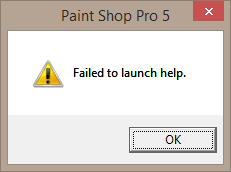
you may find pressing F1 for Help no longers works in a legacy application, and you get a pop-up dialog saying 'Failed to launch Help',
something like this:


Cause: The Help for [some legacy] programs was created in Windows Help format, which depends on a feature that isn't included in Windows 8.1 or Windows RT 8.1.

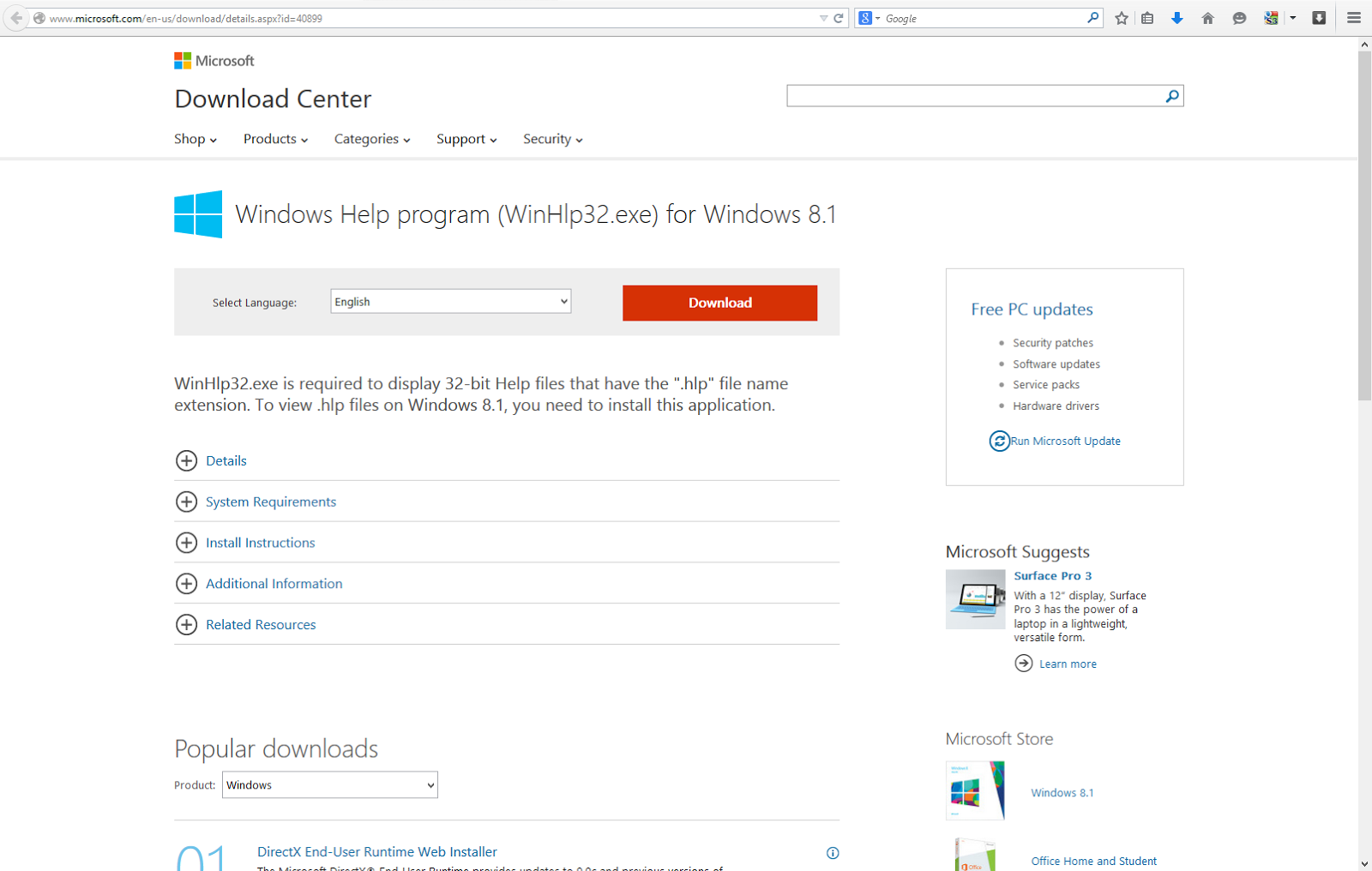
FIX: WinHlp32.exe is required to display 32-bit Help files that have the ".hlp" file name extension. To view .hlp files on Windows 8.1, you need to install 'Windows Help program (WinHlp32.exe) for Windows 8.1 .' availbale from Microsoft's web site.


http://support.microsoft.com/kb/917607