After installing GIMP 2.8, or upgrading from an earlier version of the software, and especially if you've then also installed extensions or plug-ins, such as the gimp-dds 3.0.0 plug-in ̶̶ you may find yourself in the situation whereby everytime you go to load GIMP it gets to the 'loading fonts' routine (right after 'looking for data files') and then hangs up and won't continue any further, every time!
I've learned that some particular fonts are constantly in use or 'locked' by the Adobe Acrobat Update Service.
Try stopping or 'killing' the Adobe Acrobat process (via Administrative Tools Services; or simply using Task Manager - right-click on the Adobe Acrobat Update Service, and select 'End task').
This should release any locked fonts and allow the GIMP loading-up process to finally succeed with loading the fonts database.
Note: Not necessary to stop the Adobe Acrobat service everytime you run GIMP, only just for the intial post-install run, when (or if) it hangs. Apparently, once Gimp's internal fonts-database has been created, it seems to run OK thereafter, even when the Adobe Acrobat service is up and running in the background.
As I am partial to Firefox and got fed up always having to switch to Internet Explorer just to post and to see Facebook emoticons. I decided to investigate, and found the answer on the Facebook help community.
Some users of Firefox on Windows 8.1 have reported having to downgrade to version 29 to get Facebook emoticons back up and visible.
Here's an easier FIX, which works for me: Go to Firefox options, select the Advanced tab and uncheck (remove the check-mark from) "Use hardware acceleration". Don't forget to restart Firefox.
After you install Windows 8.1 (or purchase a new computer with 8.1 and then re-install legacy applications)
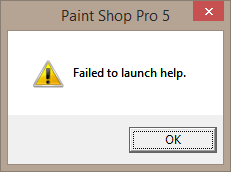
you may find pressing F1 for Help no longers works in a legacy application, and you get a pop-up dialog saying 'Failed to launch Help',
something like this:
Cause: The Help for [some legacy] programs was created in Windows Help format, which depends on a feature that isn't included in Windows 8.1 or Windows RT 8.1.
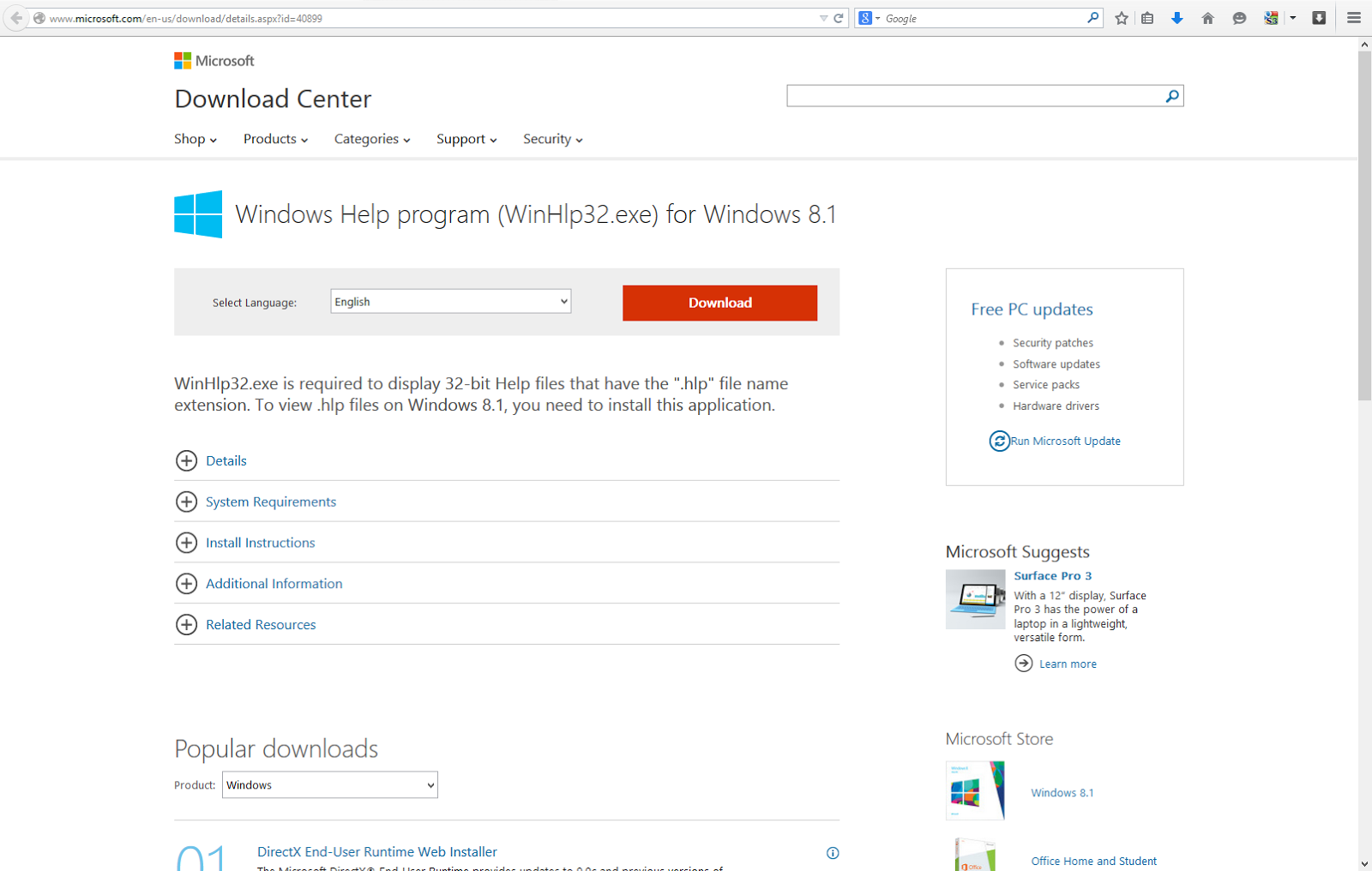
FIX: WinHlp32.exe is required to display 32-bit Help files that have the ".hlp" file name extension. To view .hlp files on Windows 8.1, you need to install 'Windows Help program (WinHlp32.exe) for Windows 8.1 .' availbale from Microsoft's web site.
Trying to 'network' two computers (Laptop & PC) on 'Windows 8.1 with
Bing' on a wireless Network, and you get a cannot access error message dialog that looks something like this:
The cause for me in this instance was because the PCs weren't in the same workgroup.
FIX: Join or create a workgroup as follows:
1. Tap or click to open System.
2. Under Computer name, domain, and workgroup settings, tap or click 'Change settings'. If Administrator permission is required, you might be asked for an admin password or to confirm your choice.
3. In the System Properties dialog box, tap or click the Computer Name tab, and then tap or click 'Change'.
4. In the Computer Name/Domain Changes dialog box, under Member of, tap or click Workgroup, and then do one of the following:
• To join an existing workgroup, enter the name of the workgroup that you want to join, and then tap or click OK.
• To create a new workgroup, enter the name of the workgroup that you want to create, and then tap or click OK.
***
Other possible causes:
# You don't have access permissions for the file or folder you're trying to get to.
FIX: Contact the owner of the file or folder to ask for permission.
If you're on a corporate network, you'll need to contact your network administrator
***
# Password-protected sharing is turned on.
FIX: Password-protected sharing is on by default for PCs in workgroups. When password-protected sharing is turned on, people using other PCs on your network can't get to your shared folders or printers unless they have a user account on your PC. There are two ways to turn on file or printer sharing:
Create identical user accounts on all PCs in the workgroup (recommended). For more info, see Create a user account.
Turn off password-protected sharing. To turn off password-protected sharing, follow these steps:
Tap or click to open Advanced sharing settings.
Click the chevron to expand the current network profile.
Under Password protected sharing, click Turn off password protected sharing, and then click Save changes. You might be asked for an admin password or to confirm your choice.
Note:
Password-protected sharing is unavailable on PCs that are on a domain.
You can only join a domain if your PC is running Windows 8.1 Pro or Windows 8.1 Enterprise.
***
# The Find devices and content slider is turned off.
FIX: To find PCs, devices, and content on your network...
Swipe in from the right edge of the screen, tap Settings, and then tap Change PC settings. (If you're using a mouse, point to the lower-right corner of the screen, move the mouse pointer up, click Settings, and then click Change PC settings.)
Tap or click Network, and then turn on the Find devices and content slider.
When you click on a .html file in Windows Explorer on Windows 7, and get this error:
"ClassFactory cannot supply requested class"
Another software installation may be currupting or registering old version of
ieproxy.dll. You could try Re-registering this ieproxy.dll again to see whether problem
goes away.
To re-register follow the below steps.
1. Login to System as Administrator.
2. Go to command prompt.
3. Navigate to C:\Program Files\Internet Explorer for 32 bit.
4. Type regsvr32 ieproxy.dll and press Enter. It will register the ieproxy.dll with this confirmation:
5. Type
regsvr32 actxprxy.dll. (Some times this dll also may get affected by
some other application...Note: if this dll file is not in your IE folder it could
be in C:\Windows\System32).
Again you get this confirmation:
6. Restart the system.
If the problem persists, consider resetting Internet Explorer to its default configuration: How to reset Internet Explorer settings http://support.microsoft.com/kb/923737/en-us
Trying to attach a database .MDF file via a newly installed SSMS (SQL Server Management Studio) and you get this dialog?
"Could not load file or assembly 'Microsoft.SqlServer.Sqm ..."
This FIX worked for me:
Copy the file Microsoft.SqlServer.Sqm.dll located on C:\Program Files\Microsoft SQL Server\100\Shared to folder C:\Program Files\Microsoft SQL Server\100\Tools\Binn\VSShell\Common7\IDE
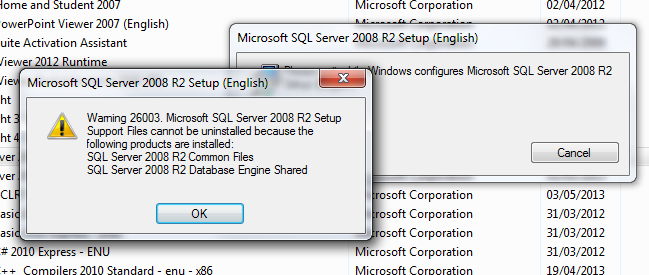
For many weeks I was stuck in SQL Server hell, and almost, nearly, resigned to having to wipe my hard drive clean, in order to get SQL Server to un-install and re-install successfully !!!
SQL Server un-install wizard kept on getting stuck halfway through the un-install process...asking for, but refusing to accept, the sqlsupport.msi file, even when pointing to a valid install location!
Until I found the answer to my woe (amazingly it works... Like a magic charm!)
Solution:
Save a file as "sql.reg" on your desktop with the following text (use copy-paste) shown in italics:



 to expand the current network profile.